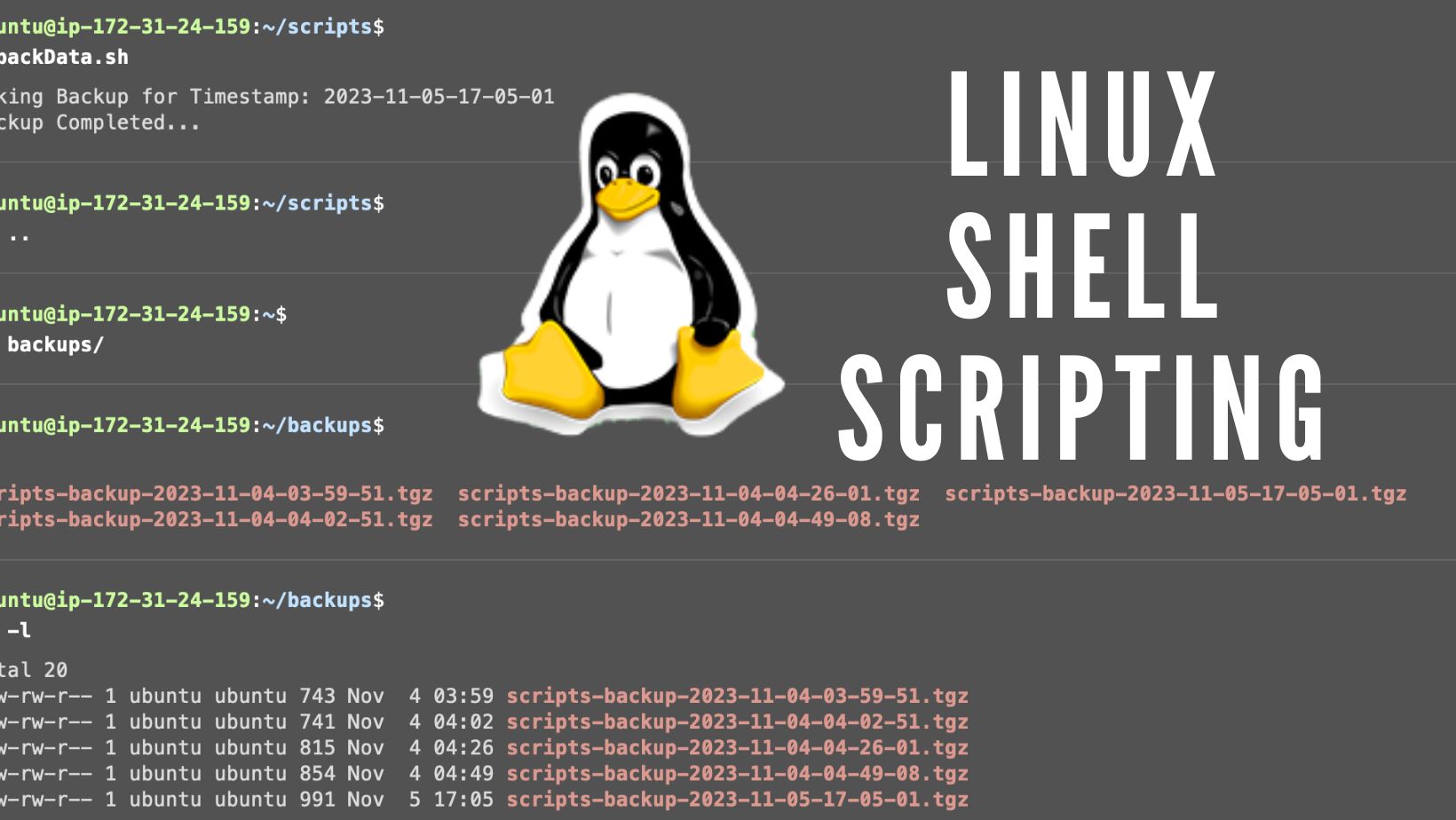
Linux Shell Scripting for DevOps
In Linux, a shell is a command line interface that takes my commands as input and converts them to instruct the operating system on what to do.
I leverage my DevOps and Wordpress skills to deliver innovative and reliable solutions for various applications and websites. I utilize Docker, Jenkins, Terraform, Python, and Bash scripting to streamline application deployments, improve scalability, and reduce overhead. I have successfully developed and maintained CI/CD pipelines, aligned deployment strategies with business needs, and resolved real-time issues in various environments.
Shell Types:
Bash (Bourne Again SHell): Most widely used shell on Linux systems.
Sh (Bourne Shell): Basic shell available on most Unix systems.
Zsh (Z Shell): An extended version of Bash with additional features.
Fish: A user-friendly shell with syntax highlighting and autosuggestions.
Basic Shell Script Structure:
Shebang: The first line of the script, specifies the shell interpreter to be used. For Bash, it is
#!/bin/bash.Comments: Lines starting with
#are comments and are ignored by the shell.Commands: Actual commands to be executed.
#!/bin/bash

# This is a comment
echo "Hello, World!"  # Print Hello, World!
Running a Shell Script:
Make the script executable: Run
chmod +x script_name.shto make your script executable.Execute the script: Run
./script_name.shto execute the script.
Shell Script to install any package into the machine:
#!/bin/bash

echo "installing $1"
sudo apt update -y
sudo apt-get install $1 -y
Variables:
#!/bin/bash

name= "Robin"
echo "My name is $name, Welcome to my blog!"
Output:

Input User:
#!/bin/bash

echo "What is the name of your folder?"
read foldername
mkdir $foldername
echo "folder created, please check..."
Output:

Arguments:
#!/bin/bash

echo "first argument $1"
echo "second argument $2"
echo "all arguments are $1 $2"
Output:

Backup Shell Script:
#!/bin/bash

src_dir=/home/ubuntu/scripts
tgt_dir=/home/ubuntu/backups
current_timestamp=$(date "+%Y-%m-%d-%H-%M-%S")
echo "Taking Backup for Timestamp:" $current_timestamp
final_file=$tgt_dir/scripts-backup-$current_timestamp.tgz
tar czf $final_file -C $src_dir .
echo "Backup Completed..."
Output:

Backup Shell Script (with function):
#!/bin/bash

function create_backup {
         src_dir=/home/ubuntu/scripts
         tgt_dir=/home/ubuntu/backups

         current_timestamp=$(date "+%Y-%m-%d-%H-%M-%S")
         final_file=$tgt_dir/scripts-backup-$current_timestamp.tgz
         tar czf $final_file -C $src_dir .
}
echo "Starting Backup Process..."
create_backup
echo "Backup Completed..."
Output:

Automate Backup Shell Script using Crontab:
To schedule a script to run daily at a specific time using cron jobs, open your terminal or command prompt and type crontab -e to edit the crontab file. Add the following line at the end of the crontab file, replacing /path/to/backup_script.sh with the actual path to your script:


The numbers and asterisks represent the following schedule:
0- Minutes (0 to 59)2- Hour (0 to 23, where 0 is midnight and 23 is 11 PM)*- Wildcard, meaning every day of the month*- Wildcard, meaning every month*- Wildcard, meaning every day of the week
Happy learning (^_^)